Let’s face it—makeup isn’t easy. Thousands of tutorials online prove that applying the perfect smoky eye or making sure your lip liner isn’t wildly overdone is a common problem. Plenty of us have never conquered symmetrical eyeliner, and plenty more of us (me included) have settled for brows that are more cousins than siblings. On its own, beauty can be difficult.
But the process for the visually impaired has always been much more strenuous. That is, until now.
In a breakthrough in smart technology, Estée Lauder has created an app capable of checking your makeup and providing verbal feedback. The Voice-Enabled Makeup Assistant (VMA) application, is a first-of-its-kind app created to aid visually impaired users with makeup application, and was designed hand-in-hand with the community it was made to serve.
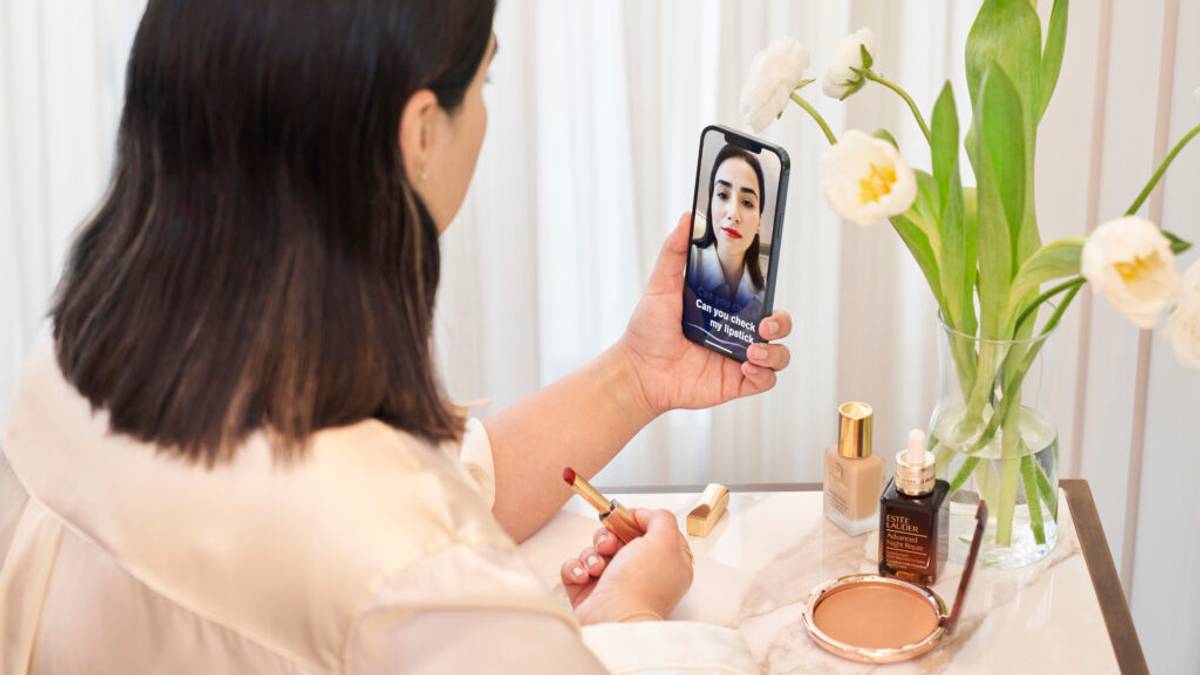
Created to assist the blind and visually impaired with makeup application, VMA scans your face in sections to determine if makeup is smudged or uneven.
The Beginning of the VMA App
According to Lamia Drew, Estée Lauder’s global director of inclusive technology and accessibility, the direction for the app was entirely shaped by the feedback they got from blind and visually impaired users of makeup. “There’s a misconception that the visually impaired don’t use makeup,” Drew explains. “And that’s just not true. From the research did and the feedback we collected, it became obvious to us that there was a need here, especially since only 4% of personal care brands really cater to those with disabilities.”
One of the first steps was understanding how a beauty routine worked for the visually impaired.
Emily Eagle, law student at the University of Texas, was part of the initial research group the VMA team reached out to, sharing her insights on the ideal morning routine and testing the app along the way. “Estée Lauder Companies asked me about my current makeup routine and what would be ideal for an app to do in a perfect world where there was no technological limitations,” Eagle explains. “Then they invited me to test the app throughout several different stages of development, from foundation to eyeshadow to lipstick. It was so fun to be involved as I’m really passionate about disability rights.”
Users like Eagle helped form a clear understanding of what challenges makeup application presents to the visually impaired.
“We quickly got the sense of their daily makeup routine,” Drew says. “Often a person will apply their makeup and then send a selfie to a person they trust for honest feedback. And a common concern there was that they were being a bother.”
The app it going to be a game changer because I won’t have to rely on other people when I apply and touch up my makeup. I’ll be able to go out in complete confidence.
Hannah Chadwick
Alongside a need for an independent makeup routine, blind and visually impaired makeup users also expressed concern for how their makeup looked throughout the day.
“There was a lot of concern about how their makeup held up; if it got smeared, they wouldn’t be able to tell,” Drew explains. “Many respondents cited times when they were wearing the wrong lipstick shade or too much eye shadow and didn’t know it, or would have to reach out to that trusted person a second time.”
Hannah Chadwick, board member and Marketing Operations Associate for Disability:IN and another member of the initial research team, shares that the autonomy the app presented was a massive change for the better. “The app it going to be a game changer because I won’t have to rely on other people when I apply and touch up my makeup,” Chadwick explains. “I’ll be able to go out in complete confidence.”
A New Definition of Luxury
VMA is a few things.
It’s a voice-enabled makeup assistance app, obviously. But it’s also a technological marvel, built with pioneering technology.
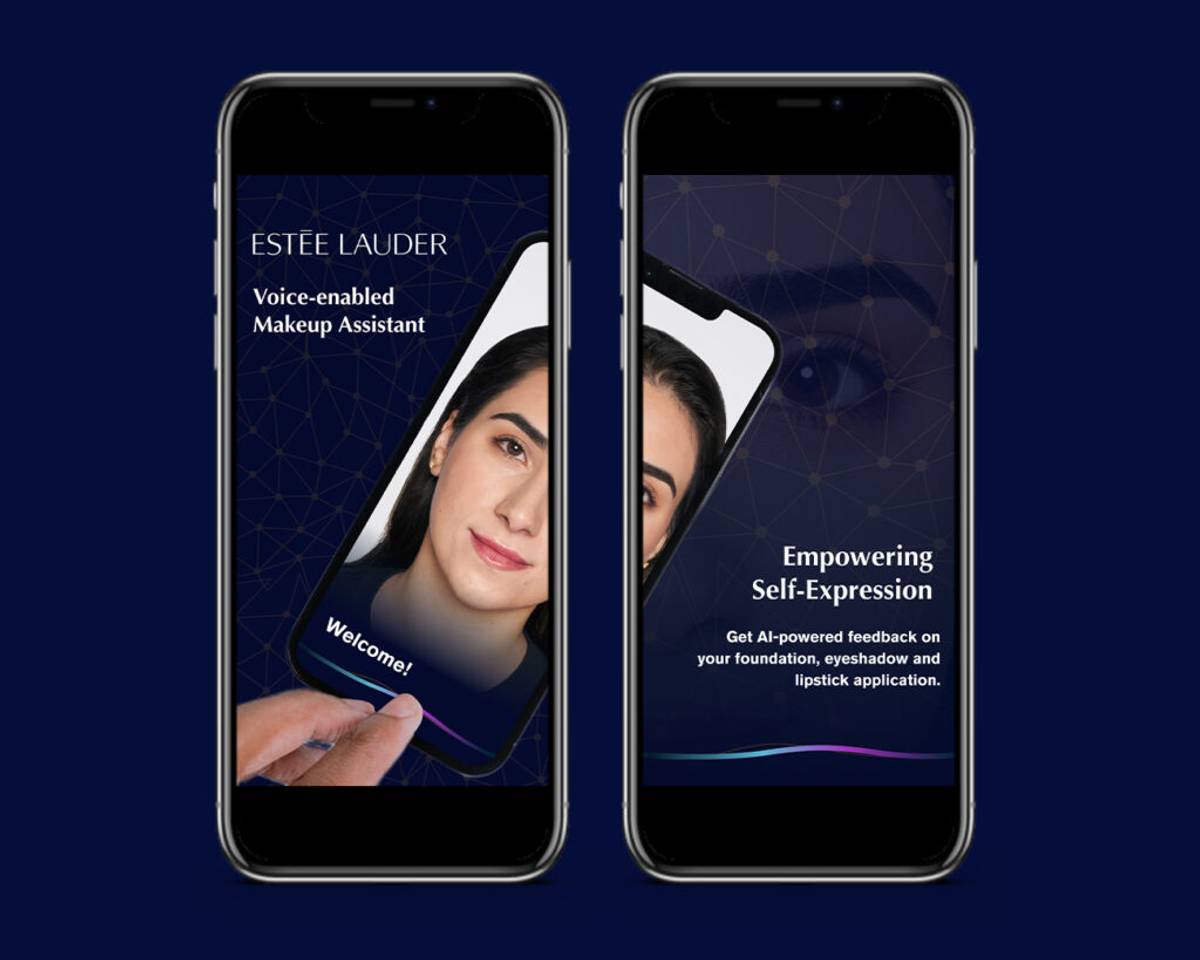
Created using smart mirror technology and powered by Estée Lauder’s AR platform, VMA is AI-powered and trained on thousands of faces, including all skin tones.
“For our team, it has been one of them most challenging, if not the most challenging, technology project we’ve ever had to deliver,” Drew says. “It’s new technology. It’s pioneering technology driven by the Estée Lauder AR platform. We used machine learning and smart mirror technology along with voice instruction to assist the user in their whole makeup application.”
One of the biggest hurdles for the team was ensuring that VMA wasn’t just a helpful product, but a luxurious one. “Something that came up again and again in our research was that users with visual impairment felt that many accessible solutions were function, but not luxurious,” Drew explains. “And along the way, we encountered a new definition of luxury.”
VMA is voice-enabled (it’s in the name), but what users wanted that voice to sound like surprised them.
“Initially we used a very friendly voice,” Drew says. “But our users really wanted a familiar experience, so we changed it to default to their screen reader. That meant they could begin using the application right away without needing to change any settings, tailoring the experience to them and considering their needs. That was the kind of luxury we want to provide.”
Training the VMA App
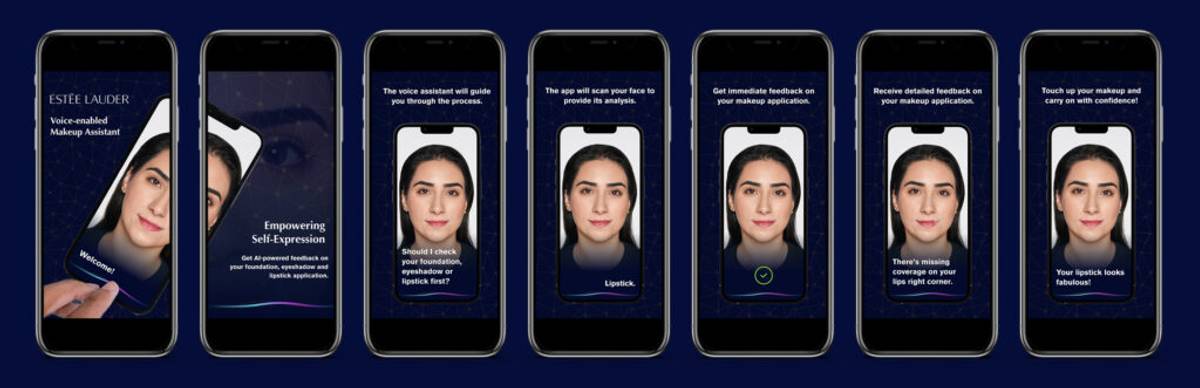
The VMA App breaks your face into sections to analyze your makeup application, giving you feedback on areas like foundation, lipstick and eye shadow.
Creating an algorithm capable of reading any users face and providing feedback on makeup application isn’t easy. For one, all of our faces are different.
“We needed the application to work successfully for every unique face,” Drew explains. “So, when we were training the AI, we had to make sure the app could react to the diversity of users. It had to be able to accommodate the almost endless variation we all have in our faces in terms of shade, shapes and features.”
You may have seen a few news stories on the subject of AI being racist, or having problems identifying non-white users. Those news stories will likely point out that an AI algorithm is heavily dependent on the training it’s given; if you only show it photos of one ethnicity, it will likely struggle with others.
“It was absolutely critical to us that when this went live, it would be a genuinely inclusive initiative,” Drew says. “So, training across the Fitzpatrick scale was really important. We fed thousands of images to the AI, and once we started testing, we added 50,000 more.”
The app was also tested by dozens of users. “We did a huge amount of testing,” Drew explains. “And it was across all skin tones and ethnicities.”
What Comes Next?
“While the app is designed specifically for the low-vision and blind community, inclusion touches everyone and this innovation is a really great example of that,” Chadwick says. “You don’t have to be low-vision or blind to utilize this, anyone can use the app.”
Drew confirms that the VMA team has its eye on the future.
“Inclusive design tends to have a halo effect,” Drew explains. “When we launched, I was amazed by how many people would come up to me afterwards and say, ‘this would be perfect for my sister who has autism,’ or for someone with motor-skill issues or for someone who has just never tried makeup before. We’ve talked about creating guides to help with easy, minimal-stress looks and more advanced tutorials. The opportunities are really endless.”